nexyo

Help: nexDATACARD

DeutschBack to nexDATACARD

nexDATACARD makes a Data Card for a file of a Data Product and publishes it in the nexyo Data Explorer. Nothing is published before a manager approves it.

What nexDATACARD does

A Data Card is the profile of one dataset: key figures and charts for the file and for each column. It describes the data. It does not rate the data.

nexDATACARD reads open Data Products of nexyo fabric. nexEDP makes the profile. The nexyo Data Explorer shows the Data Card to everybody. From the Data Explorer, a link goes back to the product page in TTF Portal.

nexDATACARD takes publisher, license and publication date from the Data Product. Nobody types them a second time.

A Data Card goes public only after your approval
Data Productnexyo fabricnexDATACARDcheck and approvenexEDPprofileData Explorerpublic indexlink back to TTF Portal

Roles

datacard:manager
Starts profiles, hides columns, approves, publishes and withdraws Data Cards. Manages sources and team.
datacard:viewer
Reads Data Products, Data Cards and their state. Changes nothing.

Step by step

1. Sign in

  1. Open nexDATACARD and enter your user name and password.
  2. At the first sign-in, change the initial password.
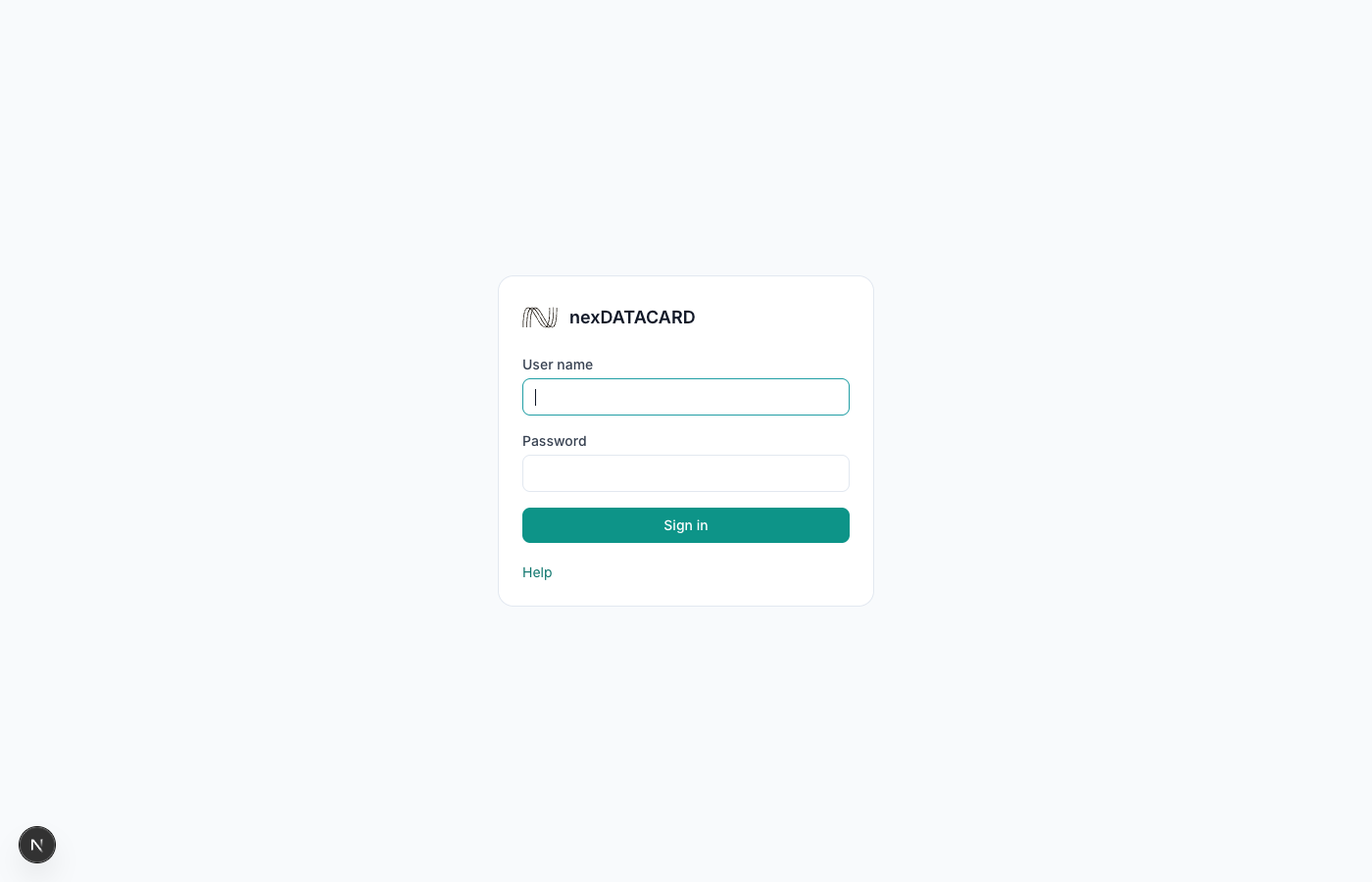
Sign-in page
Sign-in page

2. Find a Data Product

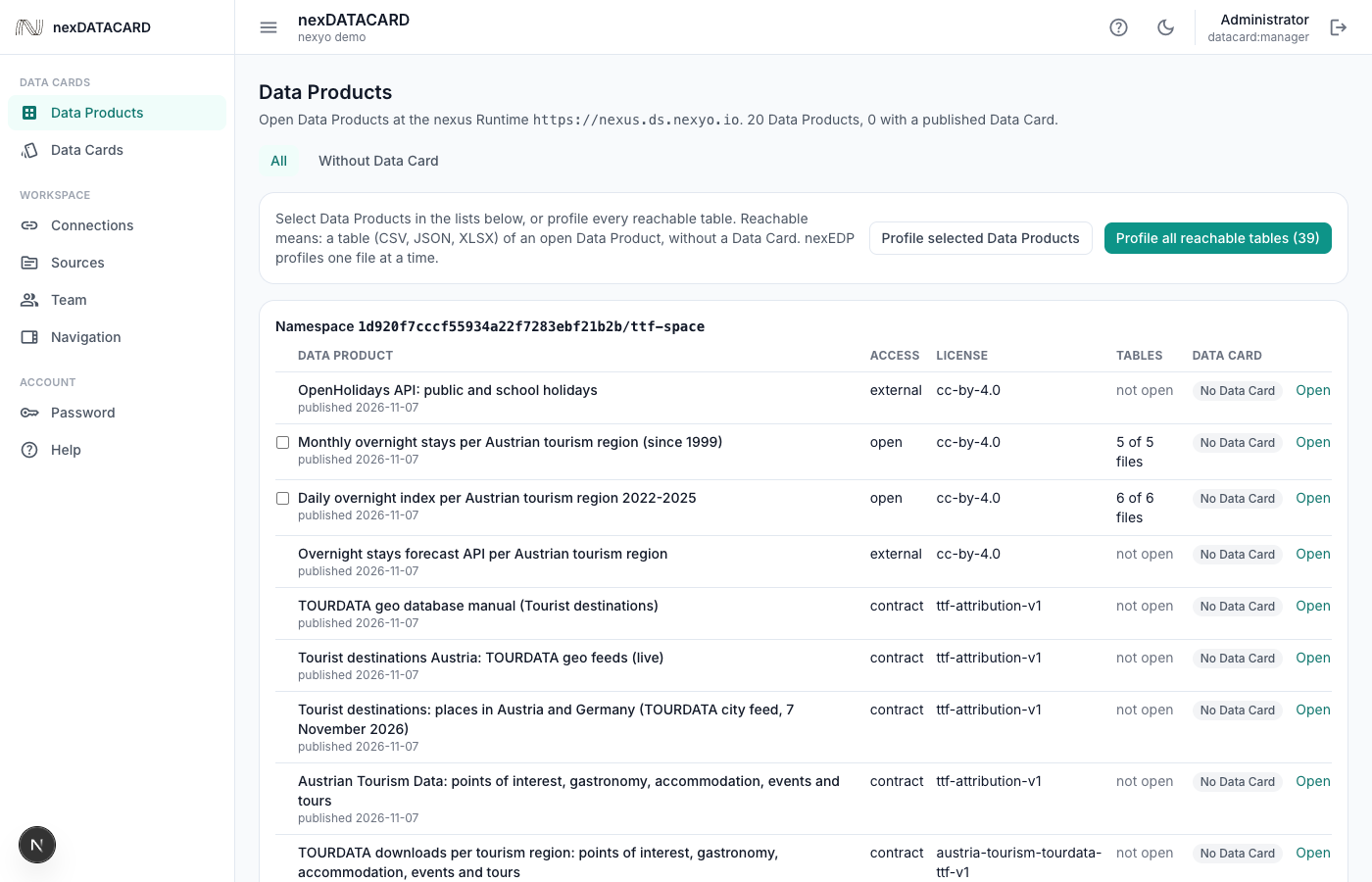
  1. Click Data Products in the sidebar.
  2. Click Without Data Card to see the Data Products that need a Data Card.
  3. Click Open in the row of the Data Product.
Data Products with the state of their Data Card

3. Choose files and check the provenance

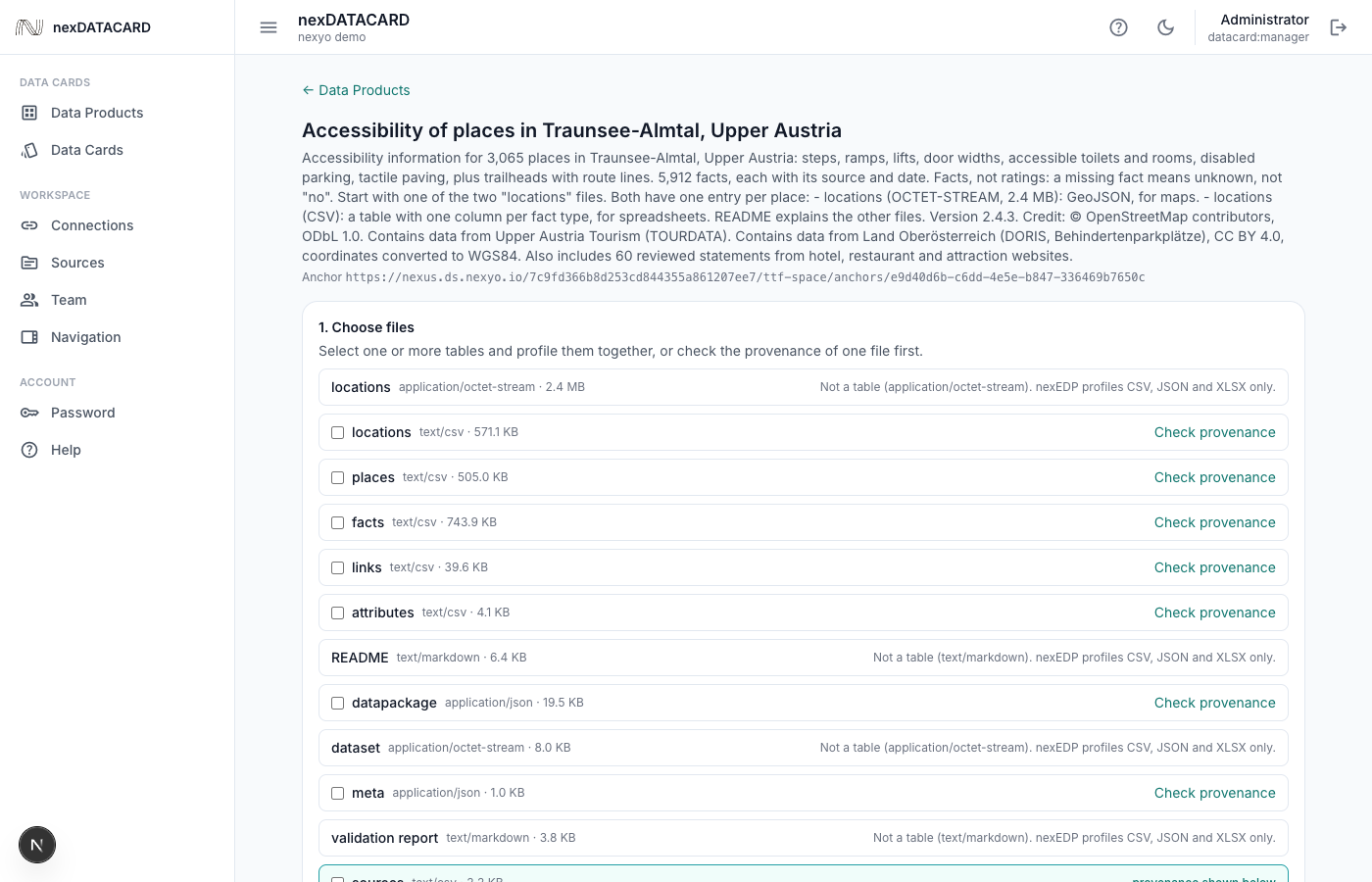
  1. Select the box in front of each table that you want to profile. nexEDP profiles tables only: CSV, JSON (a list of records) and XLSX.
  2. Click Check provenance next to a file to see its provenance first.
  3. Check the provenance table. It shows each value and where it comes from.
  4. If a red message shows, the profile cannot start. Correct the Data Product in TTF Space first.
File choice and provenance from the Data Product

4. Start the profiles

  1. Click Profile selected files, or Profile all tables of this Data Product. For one file, click Start profile below its provenance.
  2. To profile many Data Products at once, select them in the list Data Products and click Profile selected Data Products. Profile all reachable tables takes every table of every open Data Product without a Data Card.
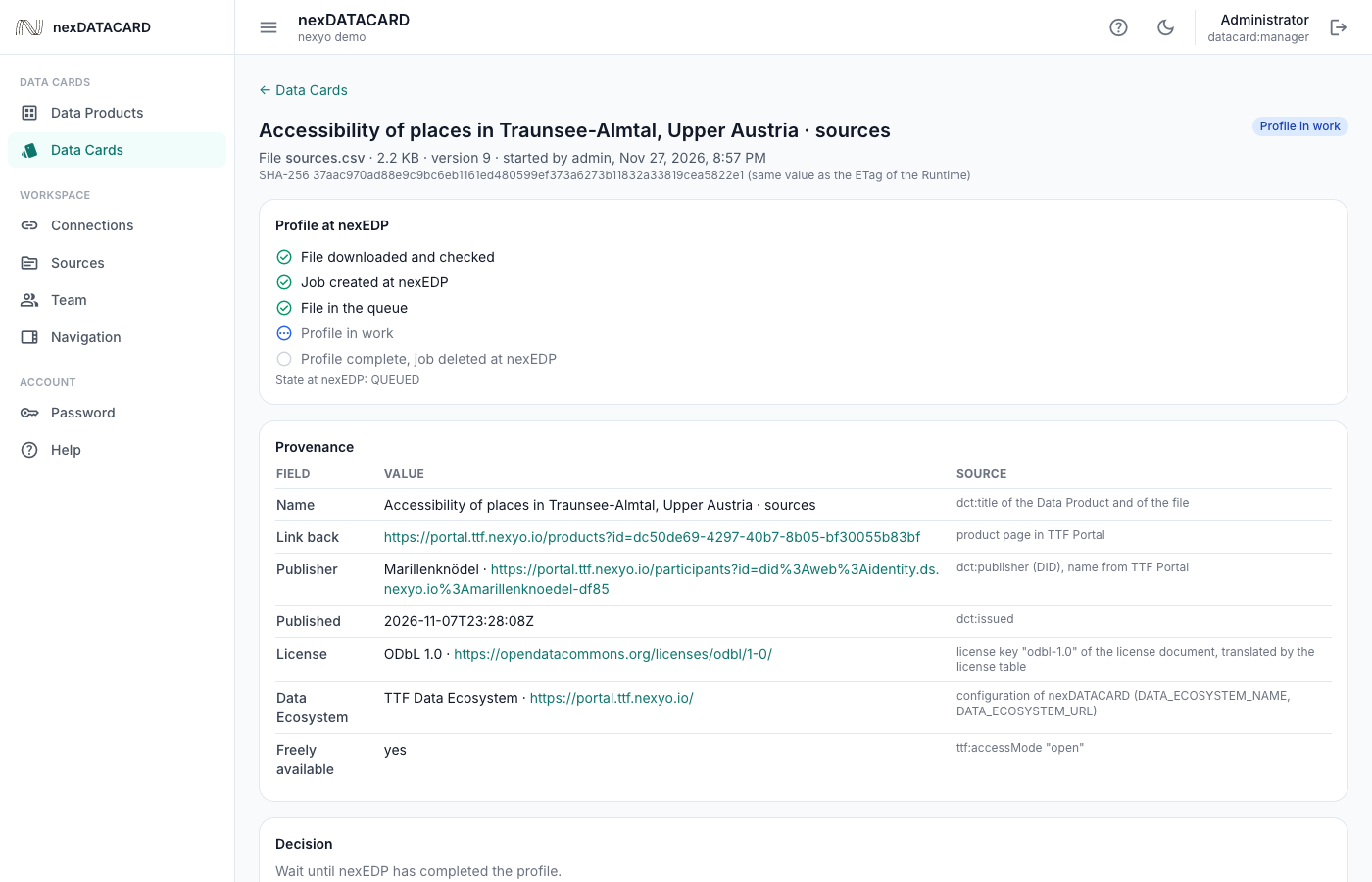
  3. nexEDP profiles one file at a time. The other files wait in the queue with the state Queued. The queue runs on, also when you close the page.
  4. Small files take 10 to 60 seconds. The list Data Cards shows the progress.
Progress of the profile at nexEDP

5. Check the preview

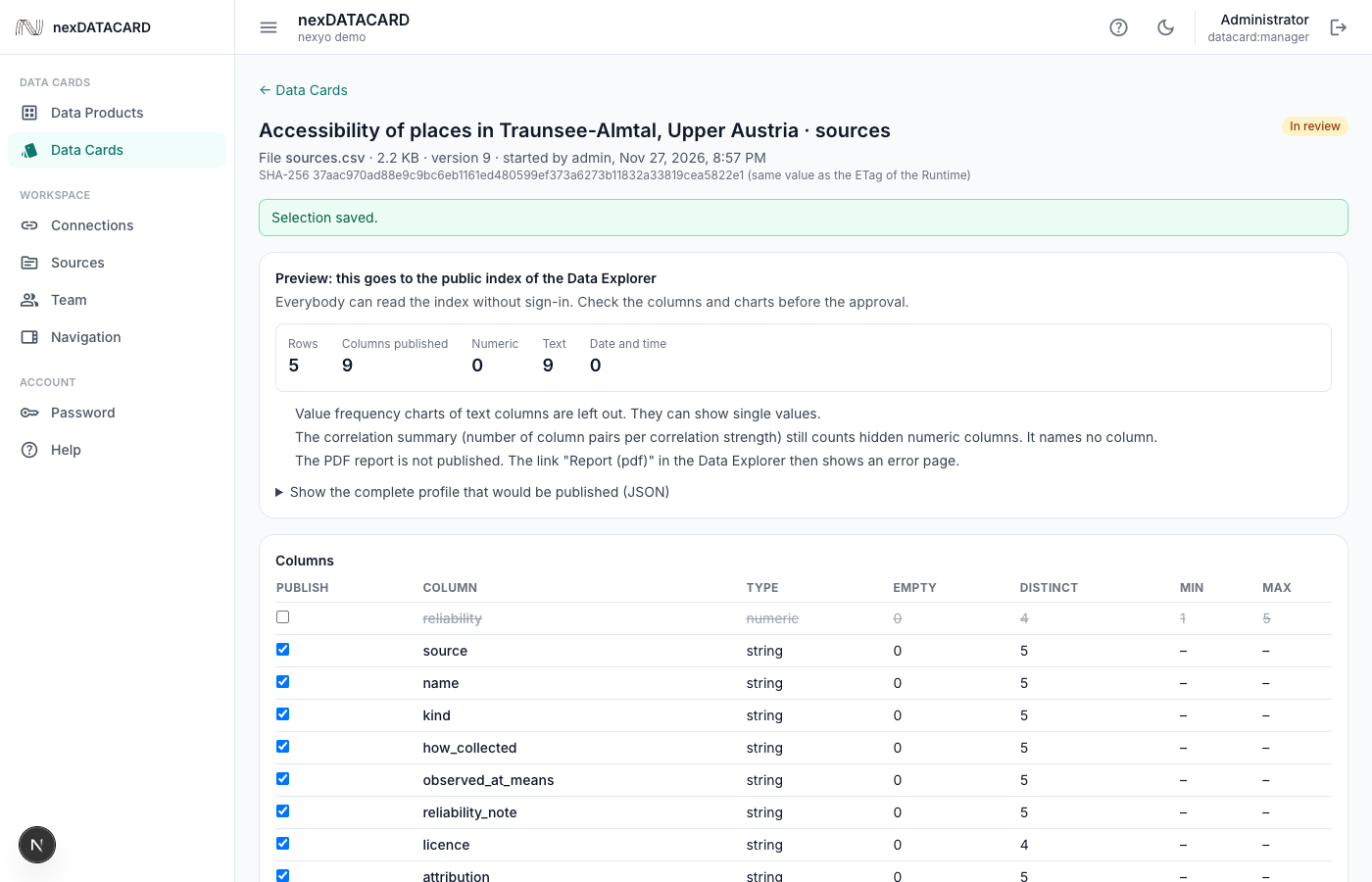
  1. The preview shows what goes to the public index: key figures, columns and charts.
  2. Clear the box Publish of each column that must not be public. Then click Save selection.
  3. Value frequency charts of text columns and the PDF report stay out, unless you select them.
Preview with the column selection

6. Approve and publish

  1. Click Approve Data Card. The approval covers exactly the preview.
  2. Click Publish in the Data Explorer and confirm the question.
  3. If you change the selection after the approval, the approval is removed. Approve again.

7. Find the Data Card in the Data Explorer

  1. Click Open the Data Card in the Data Explorer.
  2. In the Data Explorer, the button Datensatz abrufen (get dataset) opens the product page in TTF Portal. There, the reader finds the access to the data.

8. Withdraw a Data Card

  1. Open the Data Card and click Withdraw from the Data Explorer.
  2. Confirm the question. nexDATACARD deletes the entry from the public index.
  3. The Data Card stays in nexDATACARD with the state Withdrawn.

Typical problems and what to do

“The license key is not in the license table.”
The Data Product uses a license that the table of nexDATACARD does not know. nexDATACARD then uses the title and the source of the license document. Check them before the approval.
“It already has a Data Card.”
The file has a Data Card that is queued, in work, in review, approved or published. Open it in the list Data Cards. Delete or withdraw it first if you need a new profile.
“The JSON file is not a list of records.”
nexEDP needs a table. A single object, for example a passport, gives no useful Data Card.
“No service account for the Data Explorer is set.”
Technical operations must set the service account. Until then, you can profile and approve, but not publish.
“The Data Explorer refused the request.”
The service account must belong to the Data Ecosystem that the page Connections names. Ask technical operations.
“The product page in TTF Portal was not found.”
The Data Product is not listed in TTF Portal. The link back then shows the Anchor, a machine document, not the product page. List the Data Product in TTF Portal first.

Limits of this version

  • Open Data Products only. The machine API of TTF Space gives no files of Data Products that are not open.
  • Files up to 25 MB. nexEDP profiles one file at a time, at most 200 files per selection. A profile stops after 15 minutes.
  • Sign in with an account of nexDATACARD. Sign-in through nexHub comes later.
  • Changed files are not detected yet. Start a new profile for a new version.
nexDATACARD